
No boot menu on your Acer? Here is how to turn on F12

 Read in another language
 Magyar
 Deutsch
 Slovenčina
 Čeština
 Română
 Srpski
 Hrvatski
 Українська
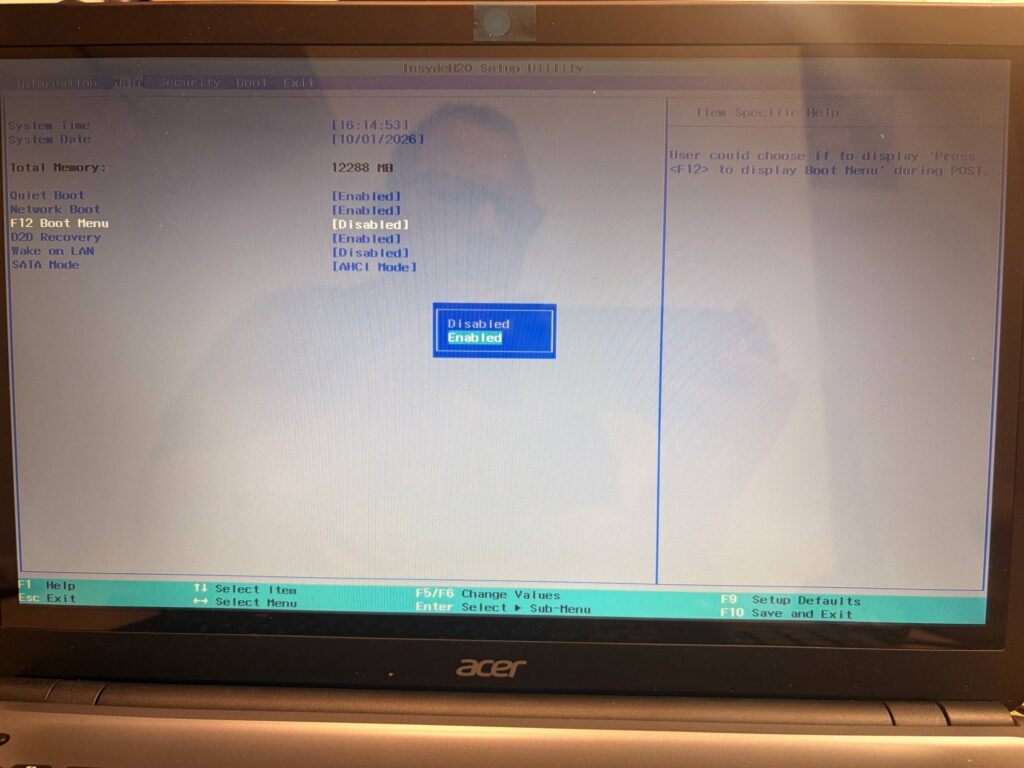
When you want to start an Acer laptop or desktop from something other than the built-in drive (a USB stick or a rescue disk, for example), you need the boot menu. On most machines that is the F12 key. On Acer there is a catch: the F12 boot menu is disabled by default, so no matter how many times you press it, nothing happens.
Many people try F8 or F9, but those do not open the boot menu on Acer. The fix is to enable F12 once in the BIOS, and from then on it works.
Step by step
- Turn the machine on and, right after it starts, tap the F2 key repeatedly (not just once). On older Acer models the Del key opens the BIOS.
- In the BIOS, go to the Main tab. You will find a line called F12 Boot Menu. By default it is set to Disabled.
- Change it to Enabled. Use the arrow keys to move, and Enter or the F5/F6 keys to change the value.
- Save and exit: press F10 and confirm (Yes). The machine restarts.
- From now on, pressing F12 at startup opens the boot menu, where you can choose what to boot from.
If the USB stick does not show up in the list
If F12 already works but the USB stick or rescue disk is not among the selectable devices, Secure Boot is probably blocking it. You can turn it off temporarily in the BIOS as well, on the Boot or Security tab. After that the USB stick appears.
If the machine does not react to the key at all
On newer machines, Windows Fast Startup sometimes swallows the key during boot. In that case you can reach the boot options from Windows too: hold down Shift and, while holding it, click Restart from the Start menu power button. On the screen that appears choose Troubleshoot, then Advanced options, and finally UEFI Firmware Settings.
In short
On an Acer the boot menu is F12, but you have to enable it once in the BIOS (F2) first. Once that is done, booting from a USB stick is easy.